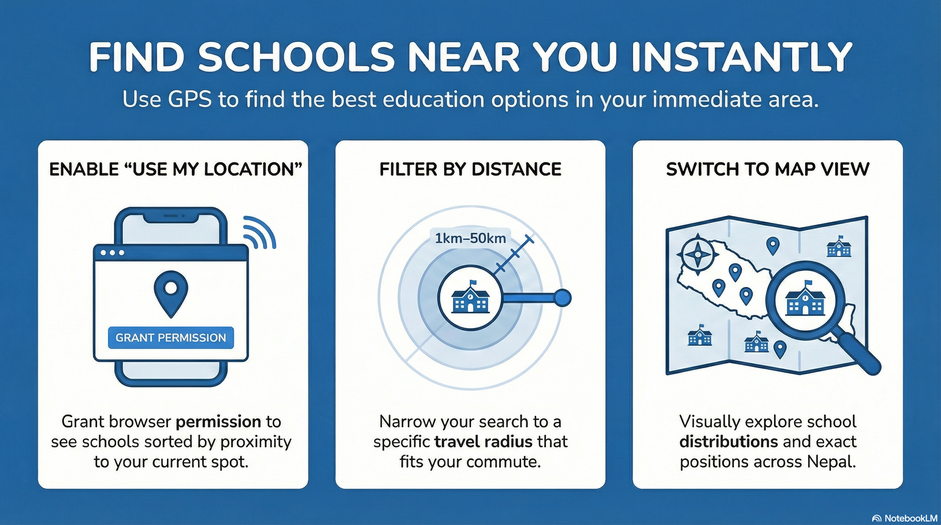

Finding the right school near your location can be time-consuming, especially when you are unfamiliar with the area or want to explore multiple options. Edusanjal makes this process simple with its location-based school search feature, allowing users to discover nearby schools quickly and efficiently.
This step-by-step guide explains how to use this feature effectively.
Step 1: Open the School Search Page
To begin, go directly to the school search page:
https://edusanjal.com/school/
If you are already browsing Edusanjal, you can access this section from the main menu by selecting “School.”
This page allows you to search, filter, and explore schools across Nepal.
Step 2: Click on “Use My Location”
On the school listing page, click on the “Use My Location” option.
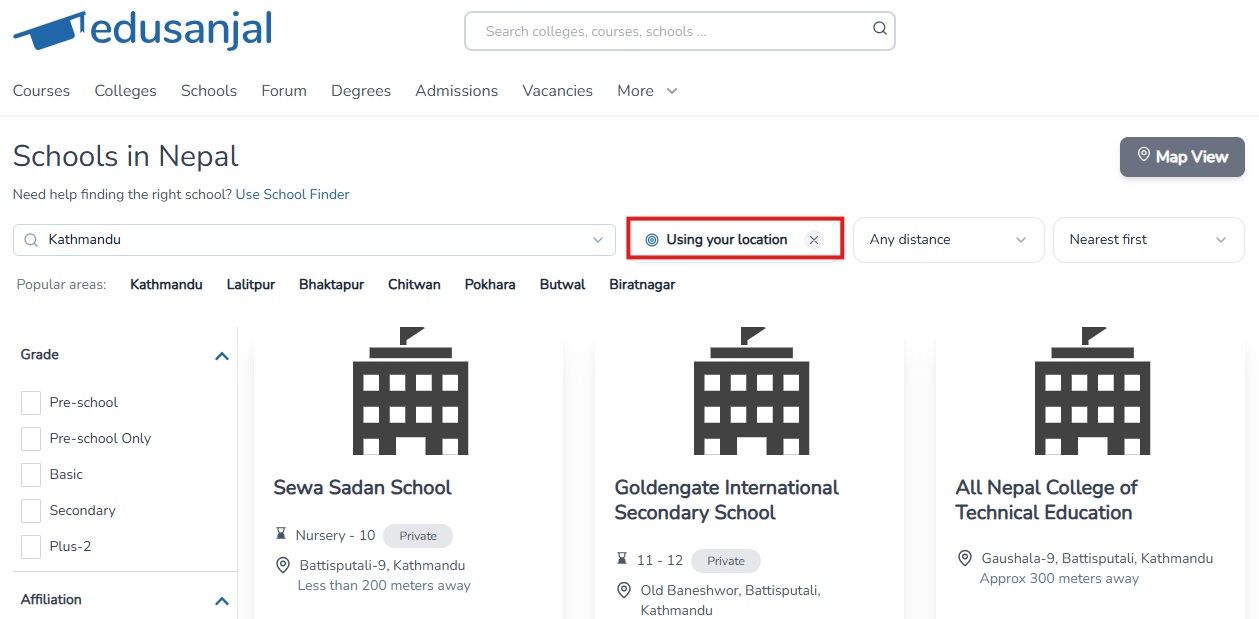
A browser notification will appear stating:
“Edusanjal wants to know your location”
You will be asked to choose one of the following:
- Allow while visiting this site
- Allow this time
Select either option to proceed. Once permission is granted, Edusanjal will access your current location and display schools based on your exact location.
Step 3: View Schools Based on Distance
After enabling location access, schools are displayed based on their distance from your current location.
You can further refine this by selecting a distance range. The platform allows you to filter schools within a specific radius, typically from 1 km up to 50 km. This helps you control how far you are willing to travel for a school.
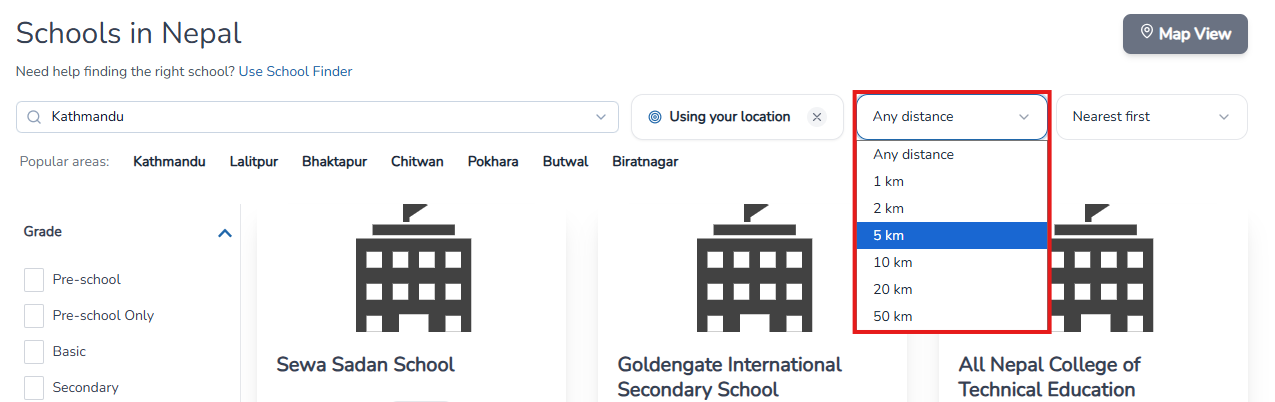
Step 4: Use Filters to Customize Your Search
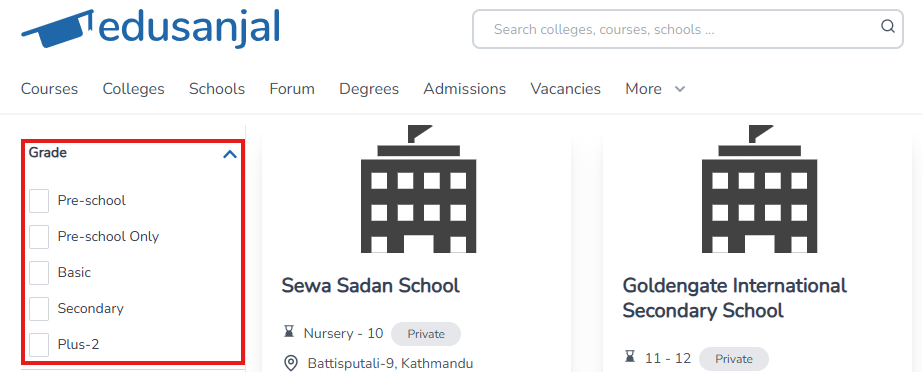
On the left-hand side of the page, you will find several filters to narrow down your results.
Level of Education
- Pre-school
- Pre-school only
- Basic
- Secondary
- Plus-2
Ownership
- Private
- Public
- Religious
- Private Nonprofit
Special Categories and Programs
- Model School
- Technical School
- A-Levels
- IB
- CBSE
These filters allow you to tailor the results according to your specific requirements.
Step 5: Switch to Map View
In addition to the list view, Edusanjal also provides a map-based interface to explore schools visually.

In the map view:
- Schools are displayed around your selected or current location
- You can visually identify their exact positions
- It becomes easier to understand how schools are distributed in a specific area
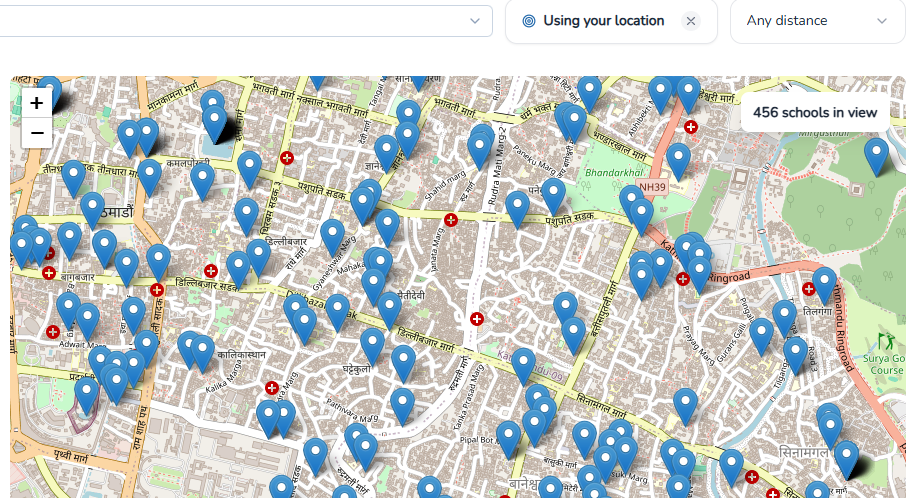
This feature is especially useful when comparing multiple schools within a defined area.
Step 6: Explore School Details
Click on any school from the list or map to view detailed information, including available programs, facilities, and contact details. This helps you evaluate and compare options before making a decision.
You May Also Explore: Sorting Schools by Popularity and ERO Rating
Beyond location-based search, Edusanjal also allows you to sort schools using different indicators that may support your decision-making.
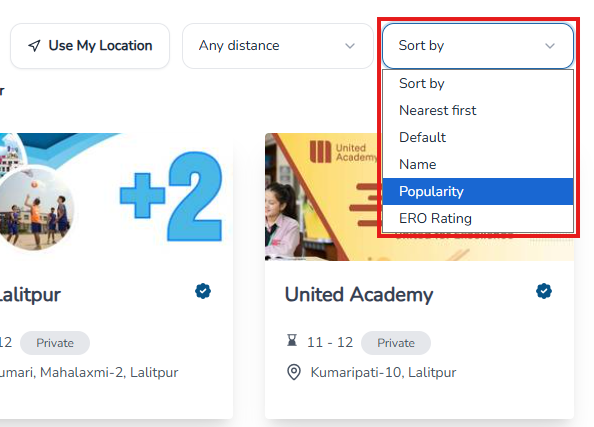
- To view schools with a higher number of enrolled students, you can sort by popularity:
https://edusanjal.com/school/?ordering=-total_students - To explore schools based on their Education Review Office (ERO) evaluation scores, you can sort using:
https://edusanjal.com/school/?ordering=-performance_points
These sorting options provide another way to compare schools based on scale and official performance assessments, depending on your priorities.
Conclusion
Edusanjal’s location-based search makes it straightforward to find schools within a defined distance range. With features like distance filtering, category-based filters, and an interactive map view, users can efficiently identify schools that match their specific needs and location.